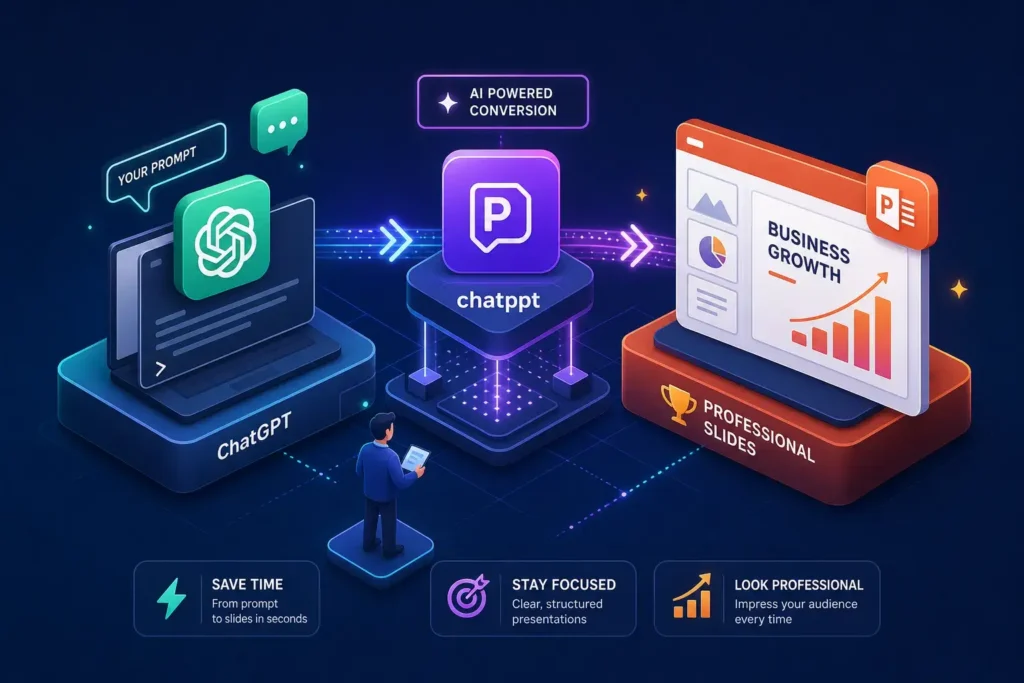
You have the ideas. You have the data. You have the talking points scrawled across three different notes apps. And yet, building a clean, professional slide deck from scratch still costs you two to three hours you don’t have. That’s the gap an AI presentation generator like ChatPPT is designed to close. You type a prompt or drop in a document, and the tool returns a structured, fully editable PowerPoint in minutes, not hours.
This tutorial walks you through exactly how that process works, covering what the AI slide maker actually produces, how to get the best results out of it, and where it falls short, including whether it’s worth paying for.
What ChatPPT actually is (and why slide-makers are switching to it)
ChatPPT is a GPT-powered PowerPoint generator that takes conversational input and produces complete slide decks. The key difference between this tool and just asking ChatGPT to “write my presentation” is that ChatPPT handles structure, layout, and visual design in one workflow. You don’t get a wall of text to paste and format manually. You get an actual PPTX file with titles, bullet content, and designed layouts ready to open in PowerPoint.
How it processes your input
The range of inputs this AI PPT generator accepts is wider than most users expect. Text prompts are the obvious entry point, but the tool also accepts uploaded Word documents, PDFs, Markdown files, XMind files, speech scripts, web links, outlines, and existing PPT files you want redesigned. You don’t need to be technical to get started. A plain-English description of your topic, audience, and slide count is enough to generate a usable first draft.
What comes out the other end
The output is a complete PPTX file with titled slides, bullet content organized by section, a summary structure, and visual layouts already applied. Critically, the files are natively editable in PowerPoint, you’re not getting flattened images or locked content. Export options include PPTX and PDF, with video export noted as available on certain plans according to third-party feature descriptions. Native PPTX compatibility is a genuine strength here, a meaningful detail for anyone planning to hand a deck to a client or present in a corporate environment.
Why this beats building slides manually
The speed advantage is real. ChatPPT can generate a 15-slide deck in under 10 minutes, a process that can take two to three hours when built manually from scratch, depending on template complexity and content readiness. That’s a real time advantage, strong enough to make the tool a genuine time-saver rather than a novelty.
Step-by-step: how to turn a prompt into a finished slide deck
Step 1: Create your account and choose a template
The free plan covers 5 PPTs per month, 100 MB of storage, and 2 custom templates (free-plan limits can vary by region, so confirm current details on the official pricing page). Sign up, log in, and navigate to the template gallery before you generate anything. Picking a base layout first gives the AI a visual framework to work within and produces more consistent results than prompting without one.
Step 2: Write or paste your prompt
A strong generation prompt includes five things: the topic, the target audience, the number of slides you want, the tone, and any specific data points or sections you need covered — the same fundamentals covered in our prompt engineering guide. Here’s a concrete example for a product launch deck: “Create a 10-slide product launch presentation for a B2B SaaS company targeting mid-market operations managers. Include a problem statement, solution overview, key features, competitive differentiation, customer proof, pricing model, and a clear next-step CTA. Tone should be confident and concise.” Compare that to a weak prompt like “make a product launch deck,” and the difference in output quality is significant. The more context you give, the less cleanup you do afterward.
Step 3: Review, edit, and export your PPTX
After generation, you’ll see a slide-by-slide outline before the final file is built. Review the structure at that stage and flag any sections that need adjustment before the design layer is applied. Once the deck is generated, you can edit individual slides inside the tool, apply design polish, and then export as PPTX or PDF.
Real-world examples: marketing decks, sales pitches, and training slides
Marketing presentation: product launch deck
Picture a small business launching a new product line and needing a 10-slide deck for a pitch meeting. The prompt follows the structure above: topic, audience, slide count, tone, key sections. The output this auto slide deck creator returns typically includes a problem slide, solution overview, market size, product differentiators, and a closing CTA slide. The structure is solid out of the box. Where you’ll spend manual time is on brand color swaps, logo placement, and swapping any stock images the tool drops in for assets that match your brand identity.
Sales pitch: B2B proposal deck
A freelancer or agency building a client proposal can get strong results with a prompt that specifies the narrative arc: problem, cost of inaction, solution, timeline, pricing, and social proof. ChatPPT structures that sequence well. Because the output is a fully editable PPTX, the deck is genuinely usable for client-facing delivery without a full redesign. The main edit pass here is usually sharpening the pricing and social proof slides to reflect real numbers rather than AI-generated placeholders — see our roundup of AI tools for freelancers for more of this workflow.
Training slides: employee onboarding module
This is where the file upload feature earns its keep. If you already have an existing Word document or PDF onboarding guide, you can upload it directly and prompt the tool to convert it into a 15-slide training deck. The AI parses the document structure, extracts key points, and maps them to a slide-by-slide format. The conversion effort drops dramatically compared to building from scratch. You’ll still want to add interactive elements like discussion questions and knowledge checks manually, but the structural work is handled.
Design quality, PowerPoint integration, and where it falls short
What the slides look like out of the box
The layout automation is generally solid. Slides come out organized, readable, and visually clean. The limitation is variety, ChatPPT tends toward a consistent illustration style across decks, which means two different presentations from two different prompts can look more similar than you’d expect. For internal decks, team meetings, and client pitches, that’s fine. For brand-heavy presentations where visual identity is the point, you’ll need a meaningful post-edit pass in PowerPoint to make the deck feel like yours.
How it works inside PowerPoint (and what about Google Slides?)
The PowerPoint add-in, delivered through MotionGo, installs a dedicated tab directly in the desktop application. From there, you use a chat-style prompt box to generate new slides or modify existing ones without leaving PowerPoint. According to MotionGo’s integration documentation, it supports commands for content generation, background changes, image insertion, transitions, and AI-assisted writing, all within the same interface. For Google Slides users, the news is less good. No confirmed native integration exists, which is a real limitation for teams running on Google Workspace. If your organization lives in Google Slides, you’ll be exporting from ChatPPT and importing manually, which adds friction.
The accuracy problem you can’t ignore
AI-generated presentations can include claims that are outdated, vague, or logically incomplete. This isn’t unique to ChatPPT, it applies to every presentation AI tool in this category. The professional habit to build is simple: treat every generated deck as a first draft, not a final product. Run a factual review pass before any presentation goes live, especially if it includes statistics, market size figures, or competitor comparisons. That single step separates professional use from risky use.
ChatPPT review: pros and cons at a glance
For a quick summary before you commit: the strongest advantages are input flexibility, native PPTX editability, and the PowerPoint add-in experience. The main drawbacks are limited visual variety across decks, no native Google Slides integration, and the content accuracy caveat that applies to all AI slide makers. If those tradeoffs work for your workflow, it’s worth a test run on the free plan.
Pricing, free plan limits, and privacy: what you need to know
What the free plan actually includes
The free tier gives you 5 PPTs per month, 2 custom templates, 100 MB storage, and 3 images per month. New accounts also receive complimentary generation credits on signup, which is enough to run real tests before committing to anything. If your goal is to evaluate the tool and build a few actual decks, the free plan covers that fully. You won’t hit the ceiling until you’re using it regularly for client or team work.
Paid plans and when upgrading makes sense
If your team builds more than five decks a month, the free tier will start to feel limiting quickly. The Professional plan is listed at approximately $9.90 per month on some pricing pages (verify the current figure on the official site, as pricing can vary by region and may have been updated). It unlocks unlimited projects, significantly more storage, advanced analytics, and priority support. The Lifetime plan is listed as a one-time payment of approximately $199 and adds enterprise-grade security, custom branding, and lifetime updates. Upgrading makes sense when you’re delivering work to clients or need the custom branding controls the free tier doesn’t include. For occasional use, the free plan holds up well.
Privacy: what happens to your uploaded content
ChatPPT’s privacy policy covers content data including presentations, templates, and conversations you create on the platform. The platform states it uses enterprise-grade encryption. However, specific data retention timelines and exact copyright terms for uploaded content are not publicly detailed in available documentation. Before uploading confidential client materials or proprietary business data, review the full Terms of Service. The key clauses to look for are ownership, license grants, training data use, and retention periods. If you can’t find clear answers in the policy, treat sensitive material as something to keep off the platform until you can verify.
The bottom line on ChatPPT as a presentation tool
ChatPPT is a legitimate time-saver for anyone who builds presentations regularly. The design output isn’t infinitely varied, and content accuracy always needs a manual review pass, but as an AI-driven tool, it substantially reduces time-to-first-draft compared to building slides from scratch. The free plan is generous enough to test meaningfully before spending anything.
Try ChatPPT free, and with the right prompt structure in place, you can have a polished, editable deck ready in the time it used to take just to pick a slide theme. The tool is worth at least one real test run, start there, and let the output tell you whether it belongs in your regular workflow.